MICROSOFT EXCEL

Build Worksheet:
Students' Information Worksheet
(1) Naming the new sheet
- Click on format
- Scroll to Organize Sheets
- Click on Rename Sheet
- Type the title: Students' Information
- Press Enter
(2) Change Column Size
⭖ Using Menu Bar
Click Format ➤ Scroll to Column - Width ➤ Insert new size ➤ OK
⭖ Using Mouse Pointer
Put cursor on column A ⇢ until symbol "↔" displayed, drag the cursor to the left and right to change the column size
Attendance Worksheet
-1- Build Attendance Worksheet
-2- Build data link:
Click on B1 cell ⇨ type "=" sign ⇨ Click on Students' Information sheet ⇨ Click on 'Student Name' and press Enter ⇨ Back to Attendance Worksheet to see the 'Student Name' column ⇨ Click at the B1 cell box corner and drag to B31
-3- Fill in number using Autofill
Mark Worksheet
1. Build Mark Worksheet
2. Build data link
3. Use Validation:
Click on C2 cell ➣ On the Menu Bar, Click Data ➣ Click Data Validation ➣ On Allow, choose Whole Number ➣ On Data, choose less than or equal to and type 100 ➣ OK
-Repeat this step for subject marks and save-
Mark And Grade Worksheet
❖ Build Grade using VLOOKUP:
Build Grade sheet ➽ Build Scale Grade from small value to large ➽ Click on Mark sheet ➽ Click on D2 box for Bahasa Melayu subject ➽ On Menu Bar, click Formula ➽ Click Fx insert Function and on select category choose Lookup & Reference ➽ On select a function box, choose VLOOKUP ➽ OK
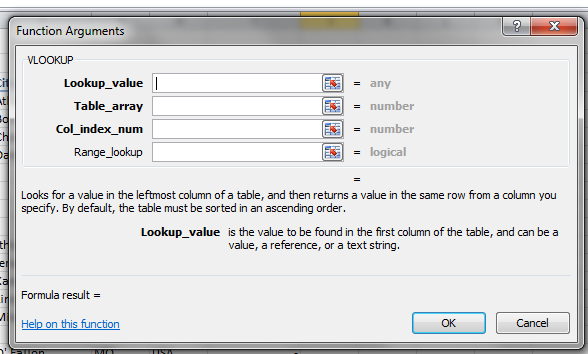
- Lookup_value ➟ Click on C2 which is the mark that will be graded
- Table_array ➟ select 'Grade' sheet and highlight on B5 : C15 cell. Insert '$' sign as B$5: C$15
- Col_index_num ➟ type 2 which refer to space or value that will replace to the column for example 'A'
- Range_lookup ➟ TRUE ( TRUE ↝ same pair and almost same, FALSE ↝ same pair only)
❖ Using COUNTIF
Copy grade scale and paste on cell box ❥ Click on D33 ❥ On Menu Bar, click Formulas ❥ Click Fx Insert Function, on select a category choose Statistical ❥ On select a function, Choose COUNTIF ❥ OK
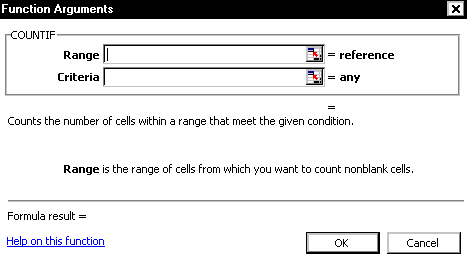
- Range ▶ select D2 until D31 which is the grade that already build. Add '$' as D$2:D$31
- Criteria ▶ type 'TH' which refers to grade scale needed
- OK
❖ Using SUM ⅀
Click on D44 ➼ On Menu Bar, click Formulas ➼ 𝞢Auto Sum ➼ highlight cell D33 : D43 ➼ ENTER
-Repeat the same step for other subjects-
Performance Chart Worksheet
⟡ Build Graph / Chart
⟡ Change title Series on the graph / chart
⟡ Chang type of graph / chart
⟡ Insert title on horizontal and vertical axis
⟡ Insert Label Data

