EDITING PICTURE, AUDIO AND VIDEO


EDITING PICTURE, AUDIO AND VIDEO


Edit Picture Using GIMP 

Open Image
⇩
Select Scissors ✂
⇩
Enter
⇩
Edit  > Copy
⇩
File > New
⇩
Adjust Image Size, Select Landscape
⇩
OK
⇩
Add New Layer
⇩
Edit > Paste. Adjust image size using Scale Tool
⇩
Move image using Move Tool
⇩
File > Save As > Naming the File


  • Feather Edges 🠞 Obtain soft edges around the image
  • Rectangle Select Tool, Free Select Tool 🠞 Gives the same results as Scissors


🔹Insert Background

Open Named File 
⮟
Select Layer Background
⮟
Insert background using Bucket Fill, Gradient Effects or Pattern Fill


🔹Filter Technique 


Click on layer that want to add special effects
⮛
Right click on image, select Filter


Editing Audio Using Audacity

  • Create book in CD form or Teaching and Learning materials
  • Record voice, music from CD, DVD or Radio
  • Record Podcasts
  • Create Ringtone
  • Edit songs or voice

🔸Installation of Audacity and Lame MP3 Encoder Software

Audacity
❧ Open Google Chrome
❧ Type website address : http://audacity.sourceforge.net
❧ Click on Download Audacity 2.0.3
❧ Download
❧ OK
❧ Run
❧ Select language, click Next until Installation process ended


Lame MP3 Encoder

❖ Open Google Chrome

❖ Type website address : http://lame.buanzo.com.ar
❖ Click on link : Lame_v3.99.3_for_Windows.exe
❖ Run


⭕ To Record Recording

⚝ Connect microphone to the computer ⚝
 ⚝ Open Audacity Software ⚝
⚝ Adjust input level for the microphone ⚝
⚝ Click on Record button & start a conversation to record voice ⚝
⚝ Press Stop to stop recording ⚝
⚝ Press Play to hear recording voice ⚝


❐ To Delete Selected Part in the Recording

Click on Selection Tool → Choose part / audio segment to delete  → Press Delete

☘ To Improve Sound Quality in the Recording

Edit ⮞ Select > Click All ⮞ Click Effect ⮞ Select Bass and Boost ⮞ OK ⮞ Press Play (voice will increase that the initial voice)


- Eliminating vocal sound and only music remain : Karaoke
  • Effect ↝ Vocal Remover (for center-panned vocals)
  • To save file: Menu File 🠖 Export 🠖 Give name and choose suitable audio format
✜ However, only songs that have high quality that can eliminate vocal voices maximally 


🖫 Save

1) Save as Project
File
⇣
Choose destination to save file
⇣
Press Save button
⇣
Click Save Project


2) Save as MP3


File
↡
Export
↡
Choose destination to save file
↡
Press Save button
↡
Project will save in ext.mp3


📁 Import Audio File

File ↦ Import ↦ Audio
⇓
Choose destination to save file
⇓
Open

BLOG


BLOG

🌝 Definition of Blog 🌝

Blog ➤ short form of weblog, which is a personal notes or journal on internet network.
Blogging ➤ updating blog
Blogger ➤ a person who are updating the blog


🌝 The Importance of Blog 🌝
  • Can exchange  information 
  • One of the main source of reference to get to know recently news
  • Medium to introduce their selves or their product


✨ Creating blog using Google Blogger

-Through URL-

  1. http://www.blogger.com
  2. http://www.blogspot.com
✍ Step to creating blog:

Creating Blog using Google Account ⇝ Naming the Blog ⇝ Choose suitable Template for Blog


MICROSOFT POWERPOINT

MICROSOFT POWERPOINT


-Basic Technique in PowerPoint-


1. Open PowerPoint program

❣ Start PowerPoint program
❣ Select Slide Design
❣ Insert Text
  • Title
  • Subtitle
❣ Save file
❣ Build New Slide


2. Insert Graphic

⚜ Steps to Insert Graphics:

Click on Menu Insert ☛ Bring cursor to Picture, click From File ☛ Select picture from Folder or Internet ☛ Open


3. Insert Texts under Graphic:

Insert ➠ Text Box ➠ Drag cursor under the graphic to add text ➠ Type " Beautiful Island " ➠ ENTER


4. Make Animation for Texts and Graphic:

Animation ➢ Highlight Text ➢ Add Animation ➢ Select Animation Style


5. ✯ Insert Sound Element:

Insert ⤅ Sound ⤅ Choose either audio from file, clip art or record audio ⤅ Insert

    ✯ Edit Sound Element:

Click on Microphone symbol ↣ Audio tools ↣ Playback ↣ Start ↣ Automatically ↣ Tick box Loop until stopped ↣ Tick box Hide during show


6. Present the Slide ⇨ Slide show ⇨ From Beginning


7. Build Table and Chart

✿ Build Table:
Add new slide ⇢ Click to Add Title ⇢ Type ' Statistics of Tourist to Pulau Langkawi' ⇢ Double click on Table icon ⇢ Insert number of row and column ⇢ Insert Data ⇢ Adjust size and position of font


✿ Build Chart:
Add new slide ⇢ Click to Add Title ⇢ Type ' Statistics of Tourist to Pulau Langkawi' ⇢ Double click on Chart icon ⇢ Chart ⇢ Click on Line chart, select Line with Marker ⇢ OK ⇢ Fill in data in Datasheet (Excel) ⇢ Chart is builded


8. Build Navigation Button

Insert ⇰ Shapes ⇰ Find Action Buttons, select Action Button : Forward or Next ⇰ Click any section on the slide ⇰ On displayed of Action Settings, choose Hyperlink to : Next Slide ⇰ OK


9. Build Question
  • Insert Questions Text
  • Type Answer Choice Text
  • Insert Correct Answer Text - Activate Correct Answer Slide 
  • Build Hyperlink to return back to the Question Slide
- Click on Rectangle shape to cover overall of the screen slide

- Insert ⇝ Hyperlink ⇝ Place in this document ⇝ Click on Question 1 Slide ⇝ OK
  • Build Hyperlink for Correct Answer
- On slide Question 1:

Highlight correct answer ⇒ Hyperlink ⇒ Place in this document ⇒ Click on Correct Answer Slide ⇒ OK

#Repeat the same for Wrong Answer


10. Build Web Page

❄ Save PowerPoint Presentation

❄ Press ALT and F11 button simultaneously. There will be a display of Microsoft Visual Basic (VBA) 

❄ Press CTRL button and G letter simultaneously. This will be open an Inmmediate window under VBA screen.


❄ Type codding: ActivatePresentation.SaveAs"C:\MyPages\Island.htm",ppSaveAsHTML,msoFalse

❄ ENTER

❄ To view the web site, Open Directory C and Click folder named MyPages

❄ Click file Island.htm in that folder


MICROSOFT EXCEL

MICROSOFT EXCEL


Build Worksheet:

Students' Information Worksheet

(1) Naming the new sheet
- Click on format
- Scroll to Organize Sheets
- Click on Rename Sheet
- Type the title: Students' Information
- Press Enter

(2) Change Column Size

⭖ Using Menu Bar

Click Format ➤ Scroll to Column - Width ➤ Insert new size ➤ OK

⭖ Using Mouse Pointer

Put cursor on column A ⇢ until symbol "↔" displayed, drag the cursor to the left and right to change the column size

Attendance Worksheet

-1- Build Attendance Worksheet

-2- Build data link:

Click on B1 cell ⇨ type "=" sign ⇨ Click on Students' Information sheet ⇨ Click on 'Student Name' and press Enter ⇨ Back to Attendance Worksheet to see the 'Student Name' column ⇨ Click at the B1 cell box corner and drag to B31


-3- Fill in number using Autofill


Mark Worksheet

1. Build Mark Worksheet

2. Build data link

3. Use Validation:

Click on C2 cell ➣ On the Menu Bar, Click Data ➣ Click Data Validation ➣ On Allow, choose Whole Number ➣  On Data, choose less than or equal to and type 100 ➣ OK

-Repeat this step for subject marks and save-


Mark And Grade Worksheet

❖ Build Grade using VLOOKUP:

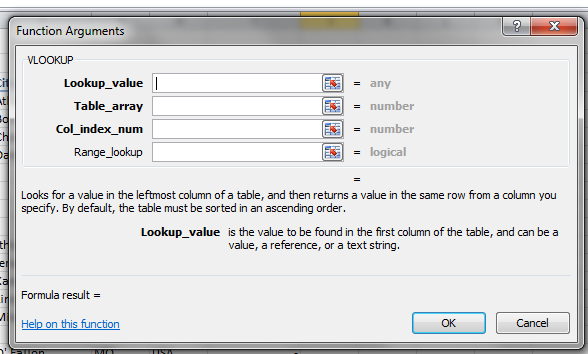
Build Grade sheet ➽ Build Scale Grade from small value to large ➽ Click on Mark sheet ➽ Click on D2 box for Bahasa Melayu subject ➽  On Menu Bar, click Formula ➽ Click Fx insert Function and on select category choose Lookup & Reference ➽ On select a function box, choose VLOOKUP ➽ OK


  • Lookup_value ➟ Click on C2 which is the mark that will be graded
  • Table_array ➟ select 'Grade' sheet and highlight on B5 : C15 cell. Insert '$' sign as B$5: C$15
  • Col_index_num ➟ type 2 which refer to space or value that will replace to the column for example 'A'
  • Range_lookup ➟ TRUE ( TRUE ↝ same pair and almost same, FALSE ↝ same pair only)

❖ Using COUNTIF

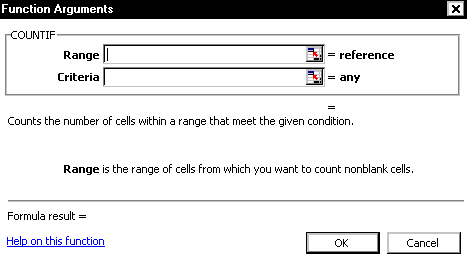
Copy grade scale and paste on cell box ❥ Click on D33 ❥ On Menu Bar, click Formulas ❥ Click Fx Insert Function, on select a category choose Statistical ❥ On select a function, Choose COUNTIF ❥ OK


    • Range ▶ select D2 until D31 which is the grade that already build. Add '$' as D$2:D$31
    • Criteria ▶ type 'TH' which refers to grade scale needed
    • OK
-Repeat the same step for next grade scale-


❖ Using SUM ⅀

Click on D44 ➼ On Menu Bar, click Formulas ➼ 𝞢Auto Sum ➼ highlight cell D33 : D43 ➼ ENTER

-Repeat the same step for other subjects-


Performance Chart Worksheet

⟡ Build Graph / Chart

⟡ Change title Series on the graph / chart

⟡ Chang type of graph / chart

⟡ Insert title on horizontal and vertical axis

⟡ Insert Label Data


MICROSOFT WORD


MICROSOFT WORD

Microsoft Word 2010 is a part of Microsoft Office 2010 family such as Microsoft Excel, Microsoft PowerPoint, Microsoft Access, Microsoft Outlook and Microsoft FrontPage.


Main function of microsoft word:

1. Document Formating
  • Size and type of font
  • Italic, bold and underline
  • Margins and page
  • Headers, footers and footnotes
  • Table, row and column
2. Document Editing
  • Insert
  • Delete and undo
  • Search
  • Replace
  • Move
  • Copy , paste and cut
  • Spelling checker
  • Grammar checker
  • thesaurus
3. Print Document
4. Saving Document


🔹Tutorial on composing a letter


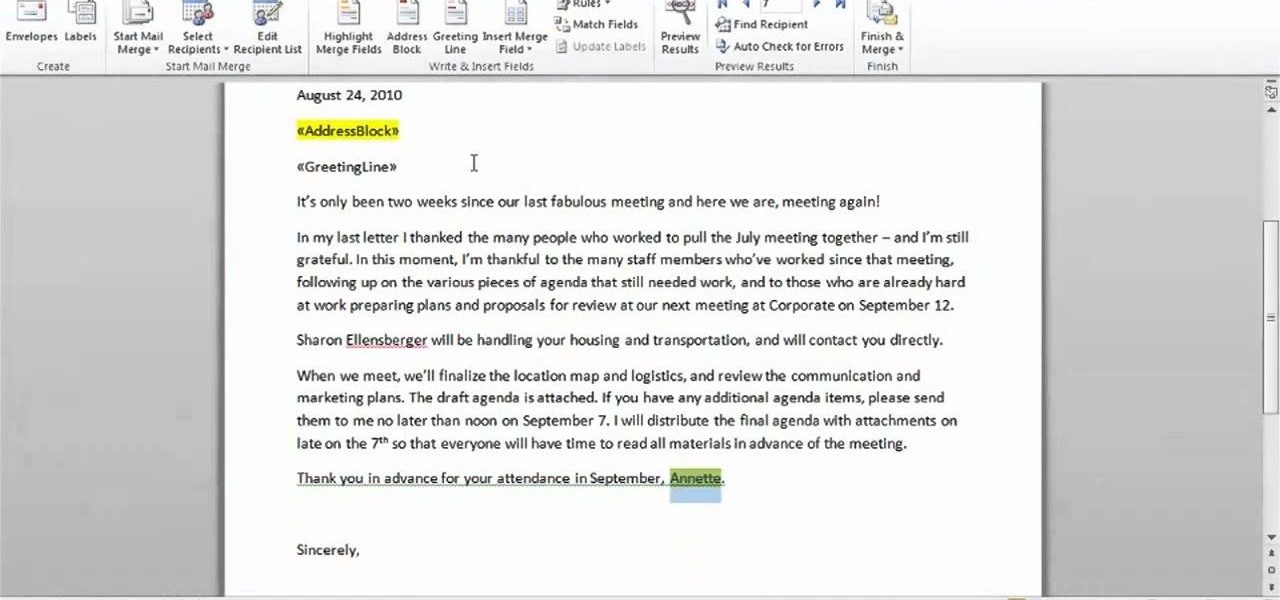
🔹Tutorial on composing a letter by using Mail Merge

-1- Build main document
-2- Build receiver list:
  • Select document type → Select Letters → click Next: Starting document
  • Click on Use the current document since we use the current letter → Next: Select recipients
  • Select Type a new list → Create → Dialog box of New Address List will be displayed
  • To insert data: Select Customize Columns → select Field Names that does not needed → Select > Delete → OK
  • Insert data of names and address of receiver. Click New Entry  to record next data

  • The data can be edited after save such as re-position the data, insert new record and delete record
  • Set the correct position of cursor of the address → {{AddressBlock}} will appear


  • Click Next: Preview your letters 
  • Click Next: Complete the merge after done the process
  • To print the letter, click Print
  • If want to make some changes on certain letter, click on Edit individual letters 
  • Mail merge completed.


CHAPTER 9 - OPERATING SYSTEM


CHAPTER 9 - OPERATING SYSTEM

Operating system (OS) ➠ a set of programs containing instructions that work together to coordinate all the activities among computer and mobile device hardware
  • Start and shut down a computer or mobile device
  • Provide a user interface
  • Manage programs
  • Manage memory
  • Coordinate tasks
  • Configure devices (insert drive/ mouse)
  • Establish an Internet connection
  • Monitor performance
  • Provide file management and other device or media-related tasks
  • Updating operating system software
  • Control a network
  • Administer security

Operating System Function
↬Starting computers and mobile devices
↬User interface -> controls how to enter data and instructions and how information is displayed on the screen
↬Graphical user interface (GUI) -> helps to interact with menus and visual images


↬The operating system:
⭕determines the order in which tasks are processed
⭕provide a establish Internet connections
⭕provide users with a variety of tools related to managing a computer, its devices, or its programs
  • File Manager
  • Search
  • Image Viewer
  • Uninstaller
  • Disk Cleanup
  • Disk Defragmenter
  • Screen Saver
  • File Compression
  • PC Maintenance
  • Backup and Restore
↬Automatic Update


Desktop Operating System
➭complete operating system that works on desktops, laptops, and some tablets


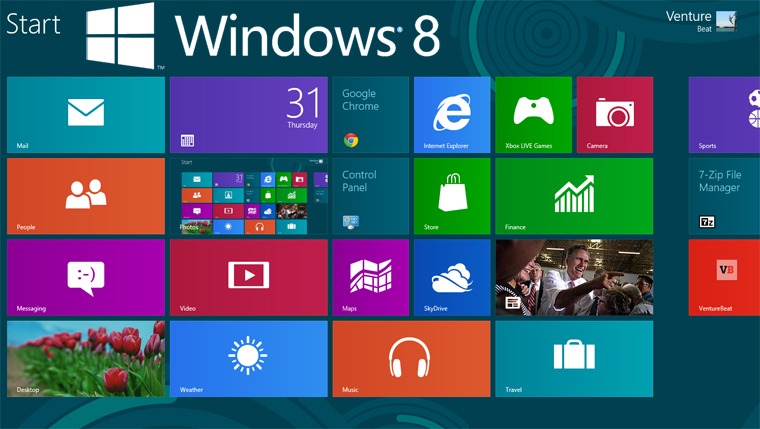
Windows 8 offers these features:
🔹Start screen interface with tiles


🔹Includes the desktop interface
🔹Support for input via touch, mouse, and keyboard
🔹Email app, calendar app, and browser included
🔹Enhanced security through an antivirus program, firewall, and automatic updates
🔹Windows Store offers additional applications for purchase


Server Operating System


Mobile Operating System
🔸The operating system on mobile devices and many consumer electronics


CHAPTER 8 - DIGITAL STORAGE


CHAPTER 8 - DIGITAL STORAGE

❖Storage❖
↷ Storage medium is the physical material on which a computer keeps data, information, programs, and applications

⛅ Cloud storage is another storage option, in which the actual online storage media used is transparent to the user

Types of storage:


❐ Capacity is the number of bytes a storage medium can hold


❐ Items on a storage medium remain intact even when you turn off a computer or mobile device


🖪Hard disk🖪
Hard disk contains one or more inflexible, circular platters that use magnetic particles to store data, instructions, and information


❥ A head crash occurs when a read/write head touches the surface of a platter (Hard disk cannot read)


❥ An external hard disk is a separate freestanding storage device that connects with a cable to a USB port or other port on a computer or mobile device


❖Flash Memory Storage❖
Flash memory chips are a type of solid state media and contain no moving parts

Differences between SSD and HDD
SSD
HDD
High price(1TB≈RM1000)
Low price(1TB≈RM160-200)
Smaller capacity (max1TB lp/4TB pc)
Big capacity (max4TB lp/10TB pc)
Short lifespan
Long lifespan
Low power consumption (2W)
Higher power consumption (7W)
High speed (200-550Mb/s)
Lower speed (50-120Mb/s)
  • A memory card is a removable flash memory device that you insert and remove from a slot in a computer, mobile device, or card reader/writer
  • USB flash drives plug into a USB port on a computer or mobile device

⛅Cloud Storage⛅
Cloud storage is an Internet service that provides storage to computer or mobile device users


💿Optical Discs💿


➺ Optical discs commonly store items in a single track that spirals from the center of the disc to the edge of the disc
➺ Track is divided into evenly sized sectors


❖Other Types of Storage❖

1) Magnetic Stripe Card
Contains a magnetic stripe that stores information

2) Smart Card
Stores data on an integrated circuit embedded in the card

3) Radio Frequency Identification (RFID)
  • RFID tag consists of an antenna and a memory chip that contains the information to be transmitted via radio waves
  • RFID reader reads the radio signal and transfers the information to a computer or computing device

  • Types of RFID tags:

4) Microfilm and Microfiche
Store microscopic images of documents on a roll or sheet film


CHAPTER 5 - DIGITAL SAFETY AND SECURITY


CHAPTER 5 - DIGITAL SAFETY AND SECURITY

➤Digital security risk is any event or action that could cause a loss of or damage to a computer or mobile device hardware, dsoftware, ata, information, or processing capability.


Differences between Hacker and Cracker:

Hacker
  1. Corporate Spies
  2. Break the computer system with ethics
    to test the weakness of the system
  3. Do not damage the system or destroy data
Cracker
  • Unethical employee
  • Deliberately breaks the system to bring damage and sabotage elements
  • Unethical
  • Aggressive and dangerous


🔹Internet and Network Attacks


  • A firewall is hardware and/or software that protects a network’s resources from intrusion
    (between computer & internet)

🔹Unauthorized Access and Use


Unauthorized Access
Unauthorized Use
The use of a computer or network without permission
The use of a computer or its data for unapproved or illegal activities
  • Organization take several measures to help prevent unauthorized access and use:
- Acceptable use policy
- Disable file and printer sharing

  • Access controls define who can access a computer, device, or network
  • The computer, device, or network should maintain an audit trail  that records in a file both successful and unsuccessful access attempts
- User name
- Password
- Passphrase
- Combination (word + number)
- CAPTCHA (Example: I’m not a robot)
  • A biometric device authenticates a person’s identity by translating a personal characteristic into a digital code that is compared with a digital code in a computer
↳ Fingerprint reader
↳ Face recognition system
↳ Hand geometry system
↳ Voice verification system
↳ Signature verification system
↳ Iris recognition system
  • Digital forensics is the discovery, collection, and analysis of evidence found on computers and networks
  • Areas that use digital forensic:
⇨ Law Enforcement
⇨ Criminal Prosecutors
⇨ Military Intelligence
⇨ Insurance Agencies
⇨ Information security department

🔹Software Theft
➽ Software theft occurs when someone:
- Steals software media
- Intentionally erases programs
- Illegally registers and/or activates a program
- Illegally copies a program

🔹Information Theft
➽ Information theft occurs when someone steals personal or confidential information
➽ Encryption is a process of converting data that is readable by humans into encoded characters to prevent unauthorized access
-Example: WhatsApps


➽ A website that uses encryption techniques to secure its data is known as a secure site (have https://)

🔹 Hardware Theft , Vandalism, and Failure
➳ Hardware theft is the act of stealing digital equipment
➳ Hardware vandalism is the act of defacing or destroying digital equipment
➳To help reduce the of chances of theft, companies and schools use a variety of security measures:


🔹 Backing up - The Ultimate Safeguard
✩ A backup is a duplicate of a file, program, or media that can be used if the original is lost, damaged, or destroyed (make a copy of it)
✩ Off-site backups are stored in a location separate from the computer or mobile device site
-Example: Cloud Storage


🔹 Ethics and Societ
  • Computer ethics are the moral guidelines that govern the use of computers, mobile devices, and information systems
  • Not all information in the web is correct
  • Intellectual property rights are the rights to which creators are entitled to their work
  • A copyright protects any tangible form of expression
  • A code of conduct is a written guideline that helps determine whether a specification is ethical/unethical or allowed/not allowed 
  • Green computing involves reducing the electricity and environmental waste while using computers, mobile devices, and related technologies
  • Content filtering is the process of restricting access to certain material on the Web (web filter)
  • Web filtering software restricts access to specified websites
🔹Information Privacy
- Information privacy refers to the right of individuals and companies to deny or restrict the collection and use of information about them
- It is important to safeguard your information
- Information about you can be stored in a database when you:
✨Fill out a printed or online form
✨Create a social networking profile
✨Register a product warranty

- Phishing is a scam in which a perpetrator sends an official looking email message that attempts to obtain your personal and/or financial information

- Spyware is a program placed on a computer or mobile device without the user’s knowledge that secretly collects information about the user and then communicates the information it collects to some outside source while the user is online

- Adware is a program that displays an online advertisement in a banner or pop-up window on webpages, email messages, or other Internet services

- Employee monitoring involves the use of computers, mobile devices, or cameras to observe, record, and review an employee’s use of a technology, including communications such as email messages, keyboard activity (used to measure productivity), and websites visited

- Many programs exist that easily allow employers to monitor employees. Further, it is legal for employers to use these programs

Shy Female Monkey Flower Hairpin